Showing posts with label CSS. Show all posts
Labels:

How to add Pure CSS3 Social Icons under Every Post


Today I'm going to teach you how you can add Social Share Icons under Every Post using pure CSS3. Social network site play an very important role in publishing your site among readers. There are many social sites but in here I used most popular networks. These socials icons have a cool effect when mouse pointer in hovered over these icons. These icons are made up of CSS without use of any JavaScript which slows down your page speed. Clicking any icon will share your post in that particular site.

To add this social icons follow below steps
  1. Log in to your blogger dashboard first.
  2. Lick on Template and then on "Edit HTML".
  3. Now press Ctrl + F search for <data:post.body/> code and paste the below given code just below<data:post.body/>.
CSS Codes:

NOTE : There maybe more than one so make sure that you have selected the right code.
After adding the code save the template.

You are done now. Now you and your visitors can see and share your awesome posts with these cool social share icons which has great hover effect.

0 comments
Labels: ,

Silver Salmon Button Drop down


Today I am going to teach you a another attractive menu bar. This menu bar will appear as visitors may use an apple computer. So visitors will attract to navigate through more and more your pages. I have Wrote tutorials before some attractive CSS menu bars, you can check those menu bars also.


This is a live example of "Silver Salmon Button Drop down".


To add this navigation bar simply follow below steps. 
  1. Log in to your blogger dashboard.
  2. Then click on "Layout" and then on "Add a Gadget". 
  3. Now select a "HTML/JavaScript" and insert.
  4. Now copy and past below codes and save and then arrange it in an proper place. 
  5. Now you are done and check your menu bar.
CSS Codes:

Remember to insert your menu items like Home, Products and their links.

0 comments
Labels: ,

Ash Apple Menu With CSS3

This menu bar will appear as visitors may use an apple computer. So visitors will attract to navigate through more and more your pages. I have Wrote tutorials before some attractive CSS menu bars, you can check those menu bars also.

This is a live example of "Ash Apple Menu With CSS3"

To add this navigation bar simply follow below steps. 
  1. Log in to your blogger dashboard 
  2. Then click on "Layout" and then on "Add a Gadget".
  3. Now select a "HTML/JavaScript" and insert.
  4. Now copy and past below codes and save and then arrange it in an proper place. 
  5. Now you are done and check your menu bar.
CSS Codes:

Remember to insert your menu items like Home, Products and their links.

1 comments
Labels: ,

Black Apple Drop Down Menu


This menu bar will appear as visitors may use an apple computer. So visitors will attract to navigate through more and more your pages. I have Wrote tutorials before some attractive CSS menu bars, you can check those menu bars also

This is a live example of "Black Apple Drop Down Menu"


To add this navigation bar simply follow below steps.

  1. Log in to your blogger dashboard
  2. Then click on "Layout" and then on "Add a Gadget"
  3. Now select a "HTML/JavaScript" and insert.
  4. Now copy and past below codes and save and then arrange it in an proper place.
  5. Now you are done and check your menu bar.


CSS Codes:
 
Remember to insert your menu items like Home, Products and their links. 

0 comments
Labels: ,

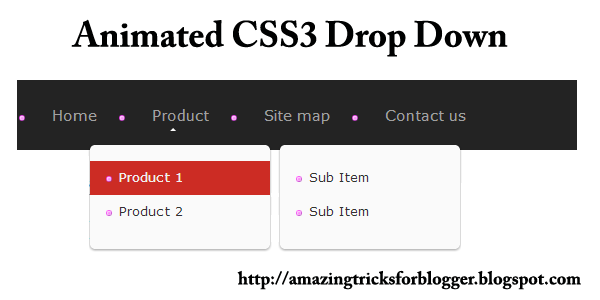
Animated CSS3 Drop Down


This is a very attractive menu bar which is visitors prone to click on the menu.This is created by using CSS codes so pages will load quickly and help to navigate easily. 

this is a live example of navigation menu which is trying to add.

sdsdsd
CSS Codes:
 

0 comments
Labels: ,

Light Opera Drop Down Menu


Drop down Navigation menu is an essential part of any blog or website. Alway try to use pure CSS, HTML, CSS3 and images for menus and Don’t uses JQUERY or JavaScript. 

Follow below steps to insert drop down menu to your blog too.


  1. First of all log in to your blogger dashboard
  2. Then select Layout tab
  3. click on "Add a Gadget" link
  4. Select and insert "HTML/JavaScript" 
This is the live appearance of menu which is going to insert.


CSS Codes:
 
Remember : Change links and menu names to your blog's links and to related menu names
Now save your script and place by dragging to suitable place.

Now you are done enjoy the menu.

0 comments
Labels:

Add CSS3 Search Bar for Blogger

Today I am going to show how to add another cool CSS3 search bar in your blogger blog. This search bar is made up of Pure CSS without the use of any JavaScript or Image. The search bar looks elegant and is also attractive. 

No demo is required for this widget as you can already see how it looks in the image beside. To add this widget to your Blogger blog follow manual installation steps. Many would like to modify this widget or add it manually for some other reasons so paste the below given code in the HTML/JavaScript box and save the widget.


CSS Codes:


0 comments
Labels:

How to Add Author Avatar Beside Post Title in Blogger

Today I am going to show you how you can add author image beside the title of every post of your blogger blog. This design looks really cool when there are more than one author in a blog. It helps you to distinguish between the authors of the post. The widget is fully automated so if you change your profile pic then the changes you want will take place.

To add this plugin to your blogger blog. Follow the below steps

Step 1 : Adding CSS
First log in to your Blogger dashboard
Then → Template → Edit HTML.
Press Ctrl + F. and find
    <b:skin>...</b:skin> if it is not expanded.
    Type ]]></b:skin> in search box and press enter key.
Add the below given code just above ]]></b:skin>


CSS Codes:


Step 2 : Adding Script
Find </head> and add the below code just above </head>
CSS Codes:


Step 3 : Final Step
Finally search for <b:if cond='data:post.title'> and add the below code just above it.
Note : There may be more than 1 <b:if cond='data:post.title'> data card so be sure to add the below code above the correct data card.

CSS Codes:


After adding this code save the template. You are done now. Now you can see rounded author avatar beside every post title in your Blogger blog.

0 comments
Labels:

Conner Ribbon for Blogger

Most of bloggers may require to add a ribbon at the corner of their blog. So this article will teach them how to add a green ribbon at the corner of their blog easily. This ribbon is made up using CSS and very less amount of coding thus it is fast loading. Unlike other ribbons no images are used as they increase the page load time. You can see the demo of this ribbon in the beside image itself. 

You can edit the text shown in the ribbon as your wish. 
To add this widget to your blog follow the below steps.

You may add the ribbon on the blog as a whole or on a specific element like <div id="example">.

To add this on any specific element just paste the below given code just below the elements starting.

To add the widget on the blog as a whole go to Blog Title → Layout → Add Widget → HTML/JavaScript and paste the below code in the box.


CSS Codes:


You can change "DEMO" with your own desired text. After editing the code save the Template/Widget.

Test by changing size of the ribbon

Now you are add a ribbon. Now you and your visitors can see this elegant CSS ribbon on the corner of your blog.

0 comments
Related Posts Plugin for WordPress, Blogger...
 
Amazing Tricks For Blogger © 2012 | Designed by Canvas Art, in collaboration with Business Listings , Radio stations and Corporate Office Headquarters